
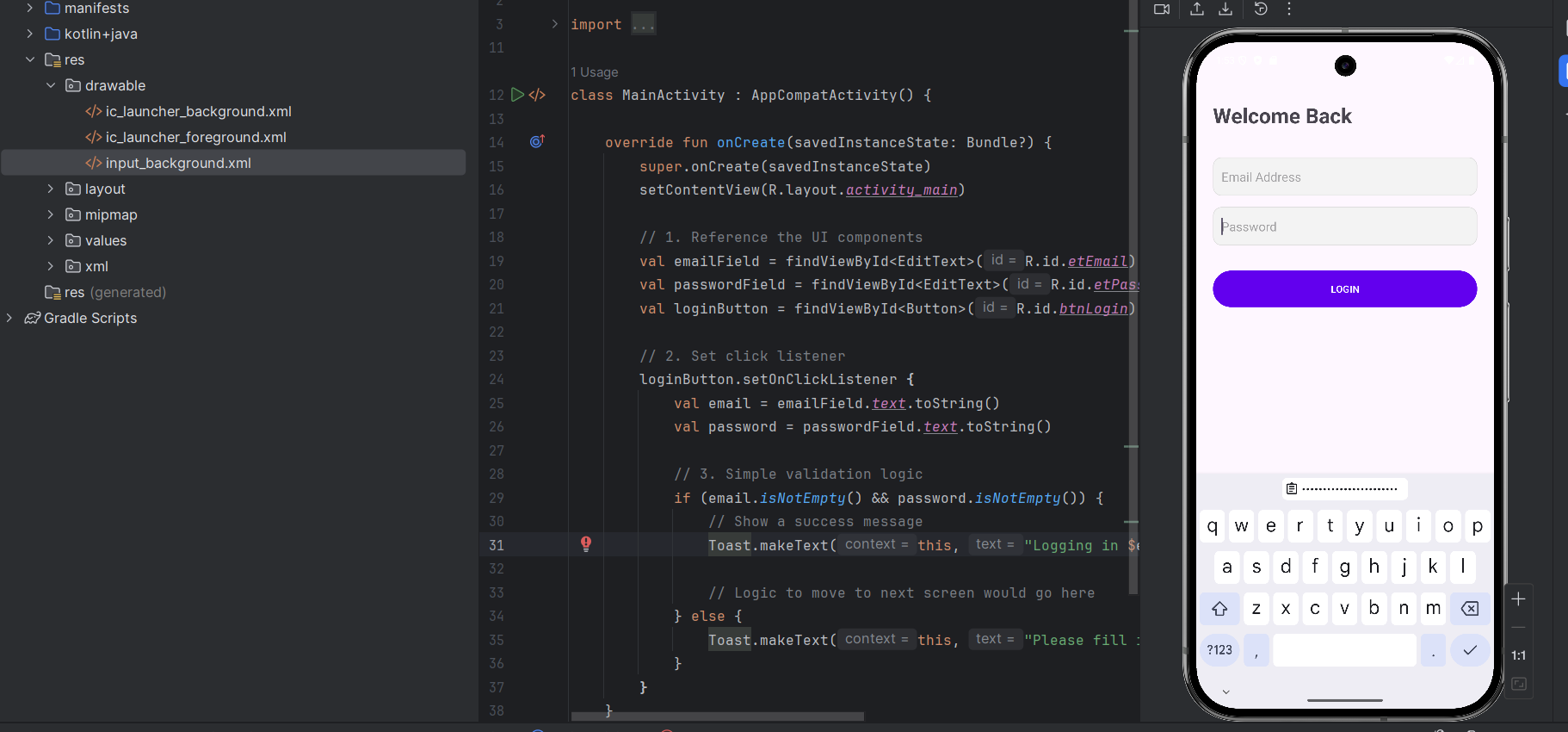
Building a login screen is the “Hello World” of Android UI development. Using ConstraintLayout is the best practice because it allows you to create complex, flat view hierarchies without nesting layouts.
Here is a step-by-step guide to building a clean, modern login screen.
🏗️ 1. The XML Layout (activity_main.xml)
This XML defines the visual structure. We use TextInputLayout from the Material Design library to get those nice floating labels.
XML
<?xml version="1.0" encoding="utf-8"?>
<androidx.constraintlayout.widget.ConstraintLayout
    xmlns:android="http://schemas.android.com/apk/res/android"
    xmlns:app="http://schemas.android.com/apk/res-auto"
    android:layout_width="match_parent"
    android:layout_height="match_parent"
    android:padding="24dp">

    <TextView
        android:id="@+id/tvTitle"
        android:layout_width="wrap_content"
        android:layout_height="wrap_content"
        android:text="Welcome Back"
        android:textSize="30sp"
        android:textStyle="bold"
        app:layout_constraintTop_toTopOf="parent"
        app:layout_constraintStart_toStartOf="parent"
        android:layout_marginTop="60dp"/>

    <EditText
        android:id="@+id/etEmail"
        android:layout_width="0dp"
        android:layout_height="55dp"
        android:hint="Email Address"
        android:inputType="textEmailAddress"
        android:background="@drawable/input_background"
        android:padding="12dp"
        android:layout_marginTop="40dp"
        app:layout_constraintTop_toBottomOf="@id/tvTitle"
        app:layout_constraintStart_toStartOf="parent"
        app:layout_constraintEnd_toEndOf="parent"/>

    <EditText
        android:id="@+id/etPassword"
        android:layout_width="0dp"
        android:layout_height="55dp"
        android:hint="Password"
        android:inputType="textPassword"
        android:background="@drawable/input_background"
        android:padding="12dp"
        android:layout_marginTop="16dp"
        app:layout_constraintTop_toBottomOf="@id/etEmail"
        app:layout_constraintStart_toStartOf="parent"
        app:layout_constraintEnd_toEndOf="parent"/>

    <Button
        android:id="@+id/btnLogin"
        android:layout_width="0dp"
        android:layout_height="60dp"
        android:text="LOGIN"
        android:backgroundTint="@color/design_default_color_primary"
        android:textColor="@android:color/white"
        android:layout_marginTop="32dp"
        app:layout_constraintTop_toBottomOf="@id/etPassword"
        app:layout_constraintStart_toStartOf="parent"
        app:layout_constraintEnd_toEndOf="parent" />

</androidx.constraintlayout.widget.ConstraintLayout>
🎨 2. The Styling (res/drawable/input_background.xml)
To make the text fields look modern with rounded corners and a light border, create this drawable file.
XML
<shape xmlns:android="http://schemas.android.com/apk/res/android">
    <solid android:color="#F3F3F3" />
    <corners android:radius="12dp" />
    <stroke
        android:width="1dp"
        android:color="#DDDDDD" />
</shape>
🧠 3. The Kotlin Logic (MainActivity.kt)
This handles the user interaction, checks if the fields are empty, and “logs” the user in.
Kotlin
package com.example.loginapp

import android.os.Bundle
import android.widget.Button
import android.widget.EditText
import android.widget.Toast
import androidx.appcompat.app.AppCompatActivity

class MainActivity : AppCompatActivity() {

    override fun onCreate(savedInstanceState: Bundle?) {
        super.onCreate(savedInstanceState)
        setContentView(R.layout.activity_main)

        // 1. Reference the UI components
        val emailField = findViewById<EditText>(R.id.etEmail)
        val passwordField = findViewById<EditText>(R.id.etPassword)
        val loginButton = findViewById<Button>(R.id.btnLogin)

        // 2. Set click listener
        loginButton.setOnClickListener {
            val email = emailField.text.toString()
            val password = passwordField.text.toString()

            // 3. Simple validation logic
            if (email.isNotEmpty() && password.isNotEmpty()) {
                // Show a success message
                Toast.makeText(this, "Logging in $email...", Toast.LENGTH_SHORT).show()

                // Logic to move to next screen would go here
            } else {
                Toast.makeText(this, "Please fill in all fields", Toast.LENGTH_SHORT).show()
            }
        }
    }
}
💡 Key Concepts Used:
- ConstraintLayout Attributes:
app:layout_constraintTop_toTopOfand similar tags tell Android exactly where to place an element relative to others. - Input Types:
android:inputType="textPassword"automatically obscures the text and changes the keyboard. - Toast: A small popup message used for quick feedback to the user.