
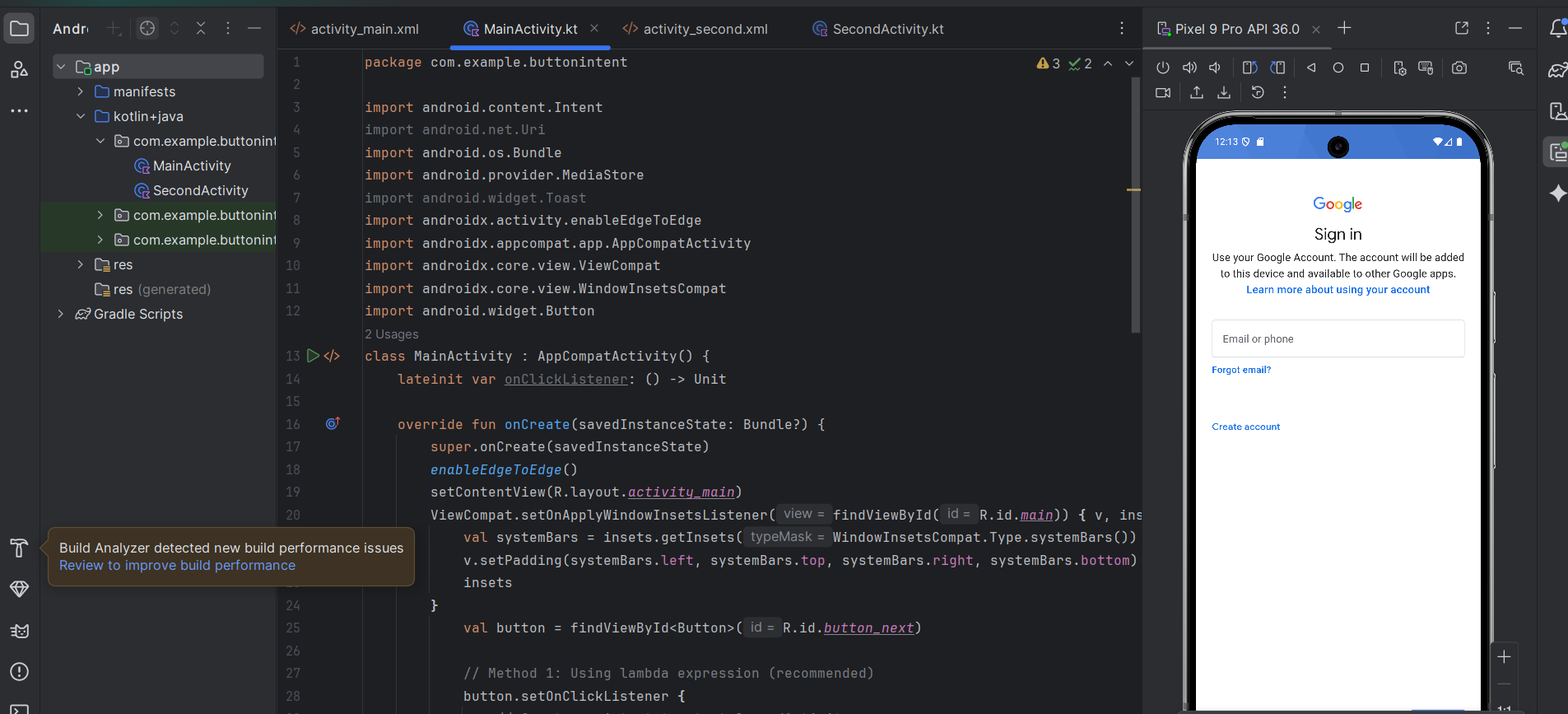
In the world of Android, an Intent is essentially an “intention” to do something. Think of it as a messenger that carries instructions from one component to another.
1. Explicit Intents: Navigating Your App
Explicit intents are used when you know exactly which component you want to start (usually another Activity within your own app). It’s like calling a friend by their full name.
The XML (activity_main.xml)
You’ll need a trigger, like a button:
XML
<Button
    android:id="@+id/btnNavigate"
    android:layout_width="wrap_content"
    android:layout_height="wrap_content"
    android:text="Go to Second Screen" />
The Kotlin Logic
Inside your MainActivity.kt:
Kotlin
val intent = Intent(this, SecondActivity::class.java)
// Optional: Pass data to the next screen
intent.putExtra("USER_NAME", "Alex")
startActivity(intent)
2. Implicit Intents: Using System Apps
Implicit intents don’t name a specific component. Instead, they declare a general action (like “take a photo” or “send an email”) and let the Android system find the best app to handle it.
A. Make a Phone Call
This opens the dialer with the number pre-filled.
Kotlin
val dialIntent = Intent(Intent.ACTION_DIAL).apply {
    data = Uri.parse("tel:1234567890")
}
startActivity(dialIntent)
B. Send an SMS
Kotlin
val smsIntent = Intent(Intent.ACTION_SENDTO).apply {
    data = Uri.parse("smsto:1234567890")
    putExtra("sms_body", "Hey, check out this Android Intent!")
}
startActivity(smsIntent)
C. Send an Email
Emails require a bit more detail to ensure only email apps respond.
Kotlin
val emailIntent = Intent(Intent.ACTION_SEND).apply {
    type = "text/plain"
    putExtra(Intent.EXTRA_EMAIL, arrayOf("recipient@example.com"))
    putExtra(Intent.EXTRA_SUBJECT, "Hello from Kotlin")
    putExtra(Intent.EXTRA_TEXT, "This is an implicit intent test.")
}
if (emailIntent.resolveActivity(packageManager) != null) {
    startActivity(emailIntent)
}
D. Open the Camera
To simply capture a photo and return it:
Kotlin
val cameraIntent = Intent(MediaStore.ACTION_IMAGE_CAPTURE)
// Note: In modern Android, you'll need to handle URI permissions for the file
startActivity(cameraIntent)
Main Activity Full Code:
import android.content.Intent
import android.net.Uri
import android.os.Bundle
import android.provider.MediaStore
import android.widget.Toast
import androidx.activity.enableEdgeToEdge
import androidx.appcompat.app.AppCompatActivity
import androidx.core.view.ViewCompat
import androidx.core.view.WindowInsetsCompat
import android.widget.Button
class MainActivity : AppCompatActivity() {
    lateinit var onClickListener: () -> Unit

    override fun onCreate(savedInstanceState: Bundle?) {
        super.onCreate(savedInstanceState)
        enableEdgeToEdge()
        setContentView(R.layout.activity_main)
        ViewCompat.setOnApplyWindowInsetsListener(findViewById(R.id.main)) { v, insets ->
            val systemBars = insets.getInsets(WindowInsetsCompat.Type.systemBars())
            v.setPadding(systemBars.left, systemBars.top, systemBars.right, systemBars.bottom)
            insets
        }
        val button = findViewById<Button>(R.id.button_next)

        // Method 1: Using lambda expression (recommended)
        button.setOnClickListener {
            val smsIntent = Intent(Intent.ACTION_SENDTO).apply {
                data = Uri.parse("smsto:1234567890")
                putExtra("sms_body", "Hey, check out this Android Intent!")
            }
            startActivity(smsIntent)
            /*
            // Optional: Show a toast message
               Toast.makeText(this, "Going to Second Activity", Toast.LENGTH_SHORT).show()


               val dialIntent = Intent(Intent.ACTION_DIAL).apply {
                   data = Uri.parse("tel:1234567890")
               }
               startActivity(dialIntent)


               val smsIntent = Intent(Intent.ACTION_SENDTO).apply {
                   data = Uri.parse("smsto:1234567890")
                   putExtra("sms_body", "Hey, check out this Android Intent!")
               }
               startActivity(smsIntent)


               val emailIntent = Intent(Intent.ACTION_SEND).apply {
                   type = "text/plain"
                   putExtra(Intent.EXTRA_EMAIL, arrayOf("recipient@example.com"))
                   putExtra(Intent.EXTRA_SUBJECT, "Hello from Kotlin")
                   putExtra(Intent.EXTRA_TEXT, "This is an implicit intent test.")
               }
               if (emailIntent.resolveActivity(packageManager) != null) {
                   startActivity(emailIntent)
               }


               val cameraIntent = Intent(MediaStore.ACTION_IMAGE_CAPTURE)
// Note: In modern Android, you'll need to handle URI permissions for the file
               startActivity(cameraIntent)

               */

        }


    }
}
Summary Table
| Intent Type | Use Case | Key Characteristic |
| Explicit | Switching between ActivityA and ActivityB. | You define the exact class name. |
| Implicit | Opening a URL, calling, or taking a photo. | You define the Action (e.g., ACTION_VIEW). |
Pro Tip: For Implicit Intents, always use a check (like
resolveActivity) or atry-catchblock. If the user doesn’t have an app that can handle your request (unlikely for calls, but common for niche file types), your app will crash!